
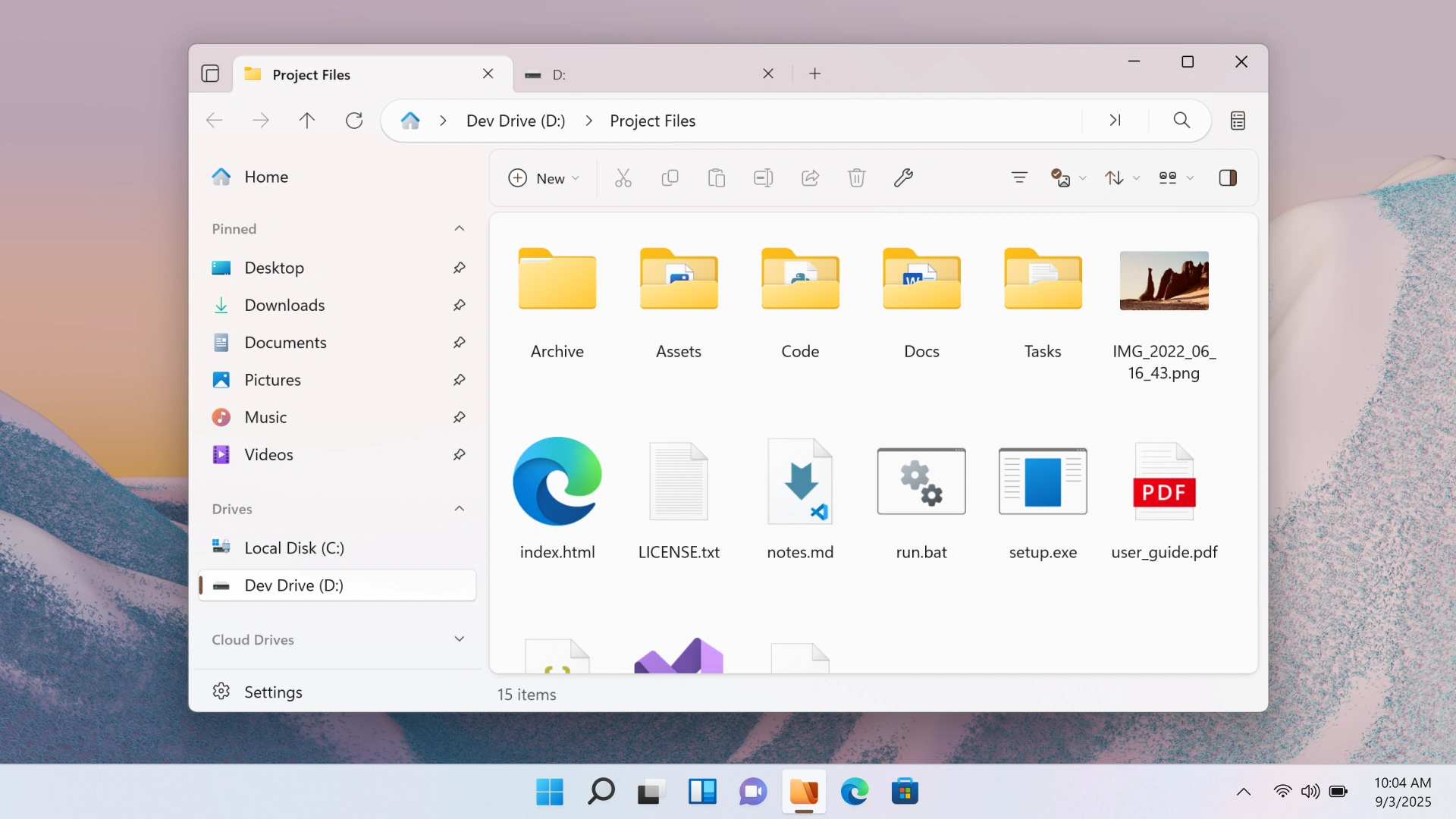
Files is a powerful file manager with many features hidden just below the surface. Here are some features you may have missed.
Command Palette
Available from the Omnibar, the Command Palette is a powerful tool for discovering and running commands. See here for details.
Dual Pane
Dual Pane mode lets you view two folders side-by-side for quick comparisons and file transfers. See here for details.
Quick Preview
Seamless integrations with QuickLook, SeerPro, and PowerToys Peek allow you to open a preview window for many file formats. See here for details.
Tags
Tags are a great way to organize and quickly access important files and folders. See here for details.
Folder Backgrounds
Support for setting custom background images per folder is another way to personalize your experience. It also allows you to add visual cues or watermarks for different projects or work-related folders. See here for details.
Git Integration
Built-in Git support allows you to view repository status, branch information, and run common commands inside Files. You can also clone repositories by dragging a repo URL or using the Clone action. See here for details.
Columns Layout
The Columns Layout allows you to view your files in a column layout, making it easier to navigate and find specific files. See here for details.
Keyboard Shortcuts
Files offers a wide array of keyboard shortcuts designed to help you quickly navigate and manage your files. The Actions page in settings lets you remap shortcuts or assign new ones for frequent actions. Open Settings > Actions to edit bindings or add shortcuts. See here for details.
Paste Screenshots
When pasting an image or screenshot from the clipboard, Files will automatically create a new image file in the directory you are currently in.
Folder Sizes
Files has a setting to automatically display folder sizes in the file list. This is normally only done files. See here for details.
Default File Manager
Make Files the default file manager to replace File Explorer. This option is in Settings > Advanced. See here for details.
Double Click Gesture
Double-clicking a blank space will move up one directory in the folder tree. You can turn off the double-click gesture in Settings > Files & folders if you prefer to use other methods of interacting with your files. See here for details.
Hashes
Right-click a file and open the Properties window to view and copy file hashes. This is helpful to verify downloads or compare files.
Download Files from our download page.