
Today we are releasing Files v4.1 for all users. Existing users will see an update icon in the top-right of the app. New users can grab it from our download page or the Microsoft Store. If you’d like to support the project, you can also sponsor us on GitHub.
Contents
What’s new in Files v4.1
Customize your toolbar
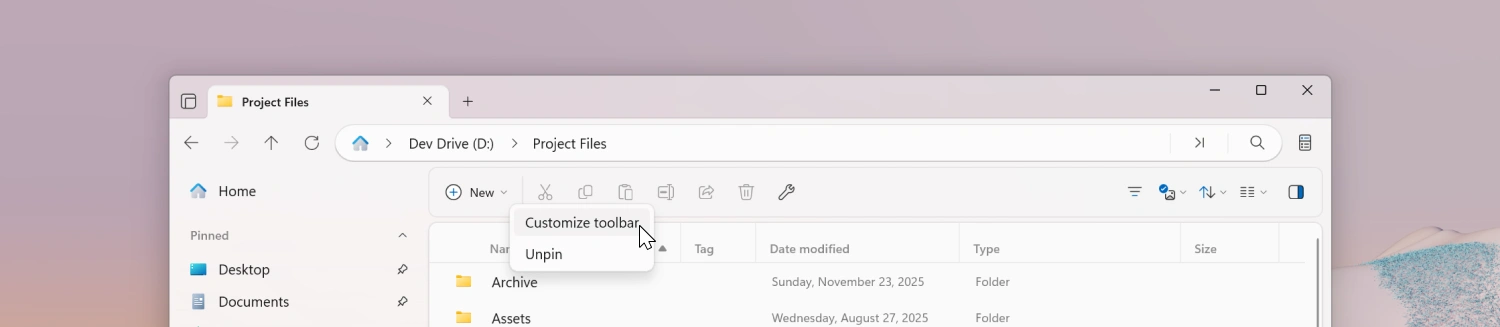
You can now personalize the toolbar to better fit your workflow. This feature allows you to choose which toolbar buttons are displayed, rearrange them, and also display labels. You can also quickly hide toolbar buttons by right clicking a button and clicking on Unpin.
To open the customization window, right-click a toolbar item and click on Customize toolbar.
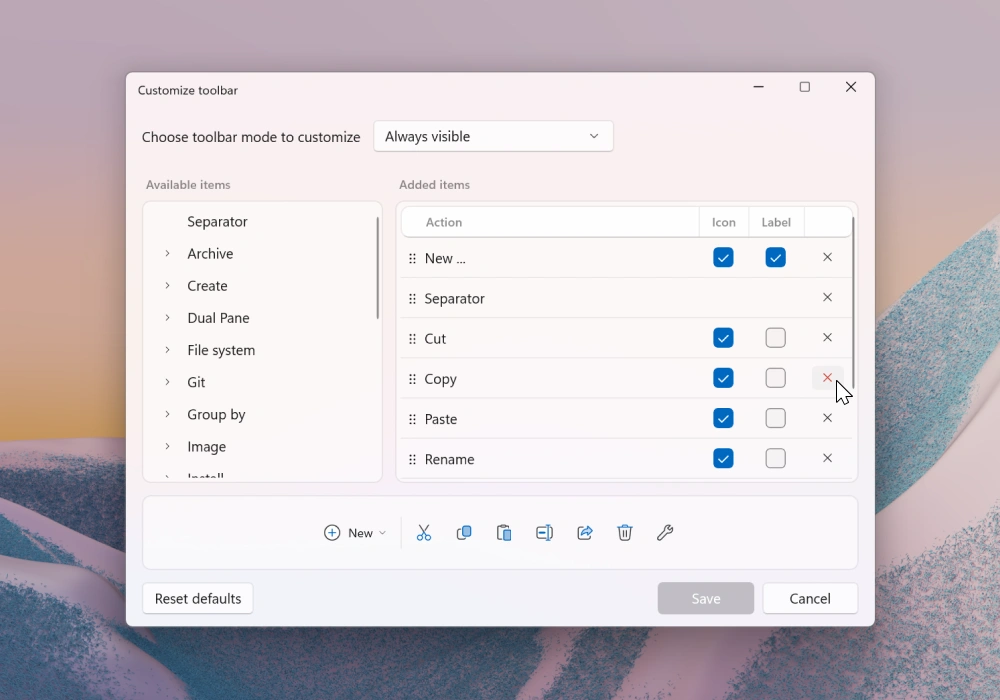
At the top of the customization window is a Toolbar mode dropdown menu. This changes which toolbar mode is currently being customized. The Always visible mode includes the list of always visible items on the left of the toolbar. The items in the other toolbar modes are only displayed when their context is active (for example, inside Recycle Bin).
To add items to the toolbar, drag an action from the list on the left to the list of added items on the right. You can also rearrange items by dragging them up or down within the toolbar list.
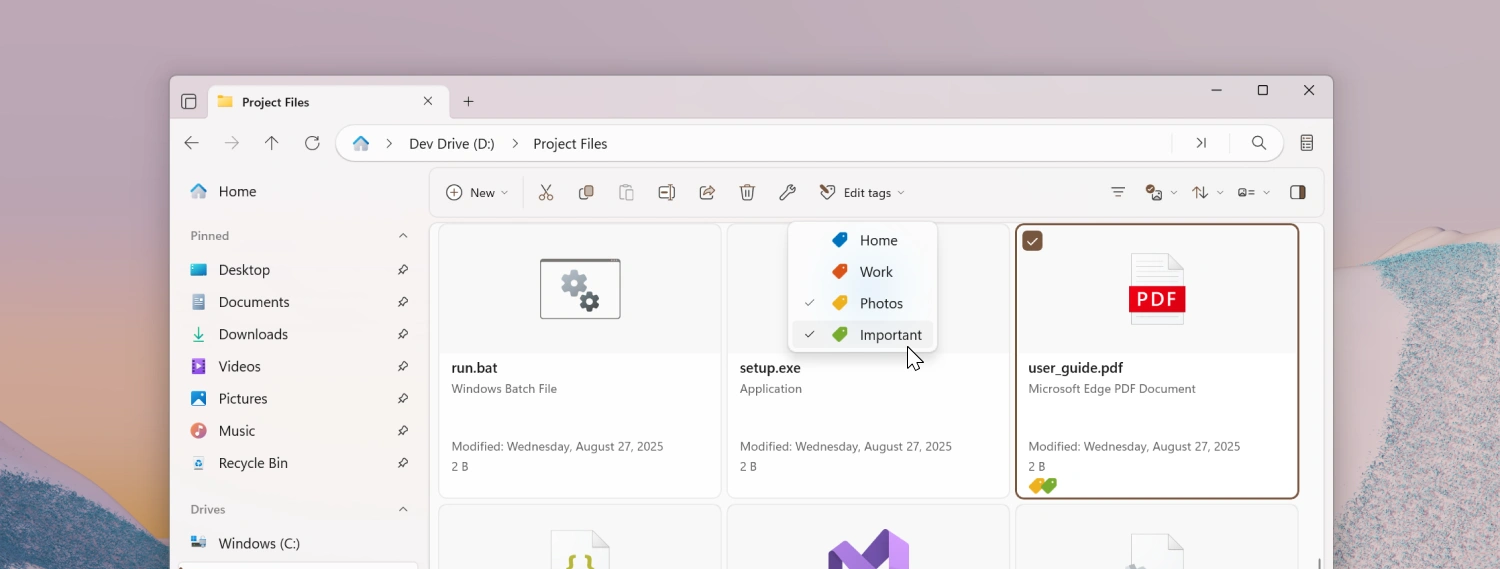
Edit tags right from the toolbar
A new Edit Tags button allows you to quickly edit a file’s tags. To enable this feature:
- Open the toolbar customization window.
- Expand the ‘File System’ group.
- Drag the ‘Edit Tags…’ item to the list of added toolbar items.
A new Settings page
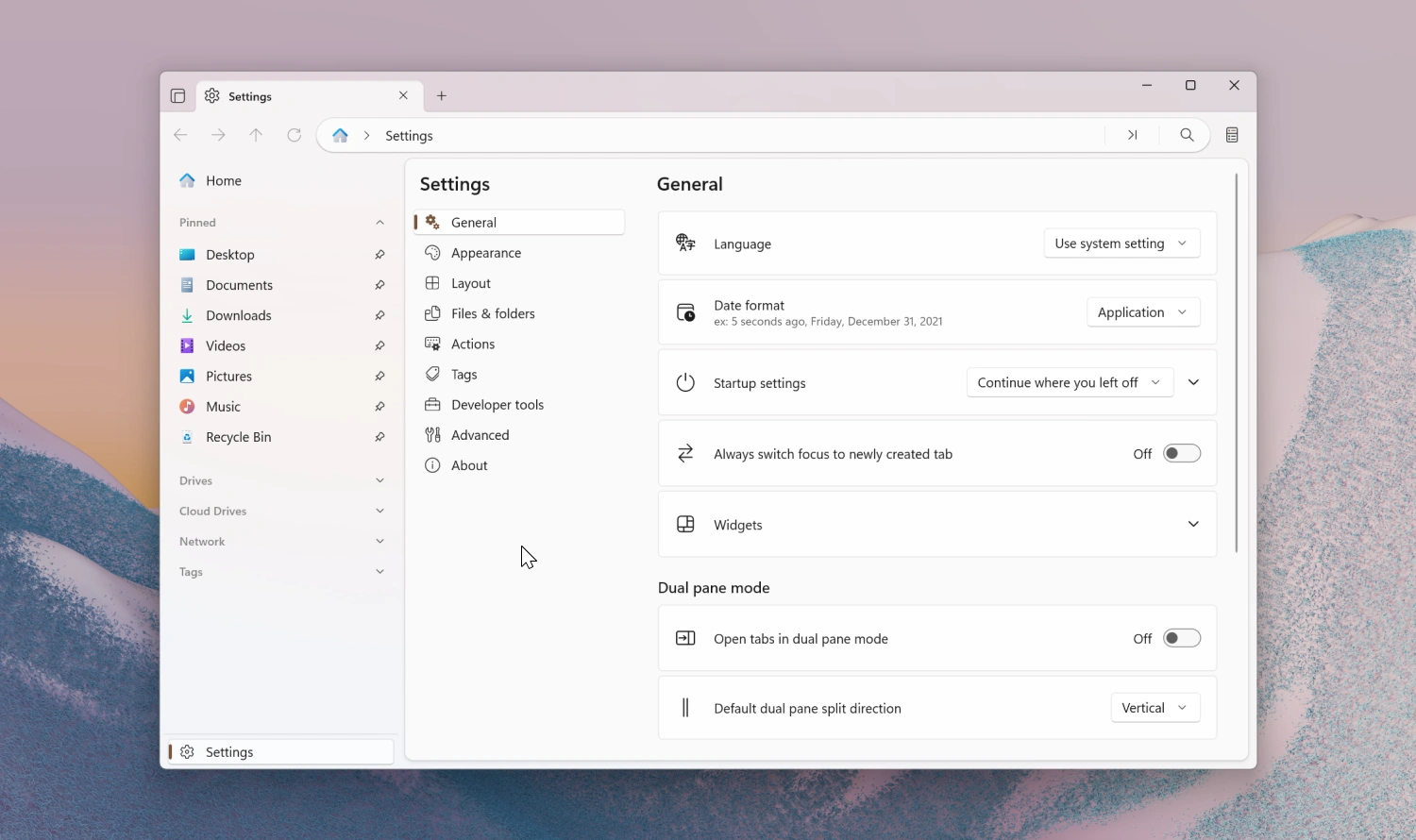
We’ve replaced the Settings dialog with a dedicated Settings page, giving us more room to add new options over time. You can also now search for settings using the search mode in the Omnibar.
Change the display font
You can now change the display font used throughout Files. Open Settings > Appearance to pick from any font installed on your system.
Default terminal
The Open in Terminal action now uses the default terminal you’ve set in Windows Settings.
Single-click options
The setting to opens items with a single-click now offers more flexibility. The following options are now available:
- Folders
- Always use single click
- Never use single click
- Use single click for touch
- Use single click for mouse
- Files
- Always use single click
- Never use single click
- Use single click for touch
- Use single click for mouse
Multiline comments
The Properties window’s Comment field now accepts multiple lines of text. Press Shift+Enter to add a new line, and the full content is saved and displayed the next time you open Properties.
New actions for changing the theme
We’ve added actions for switching the app theme, so you can now assign your own keyboard shortcuts to change themes. There’s also a built-in Ctrl+Alt+T shortcut to toggle between light and dark mode.
Other highlights
- Video and audio files now show their duration in tooltips, and tooltips in the grid layout feel snappier overall.
- AVI files can now be previewed in the Preview Pane.
- Files now displays the access keys provided by shell extensions in the right-click menu.
Fixes
- Fixed an issue where thumbnails didn’t refresh when a file was updated.
- Fixed an issue where PowerToys Peek wasn’t detected when installed in a custom location.
- Fixed an issue where importing settings could fail.
- Fixed an issue where opening programs from search results could fail.
- Fixed an issue where the tags widget displayed duplicate items.
- Fixed an issue where the operation status was reported incorrectly when moving files from protected or administrator folders.
- Fixed an issue where the window didn’t get focus when launched with
Win+E. - Fixed an issue where previewing CSS files didn’t work correctly.
Conclusion
As always, we appreciate your feedback and suggestions on how to improve Files. You can reach us on Discord and on GitHub.
Thank you for using Files! :)
Download Files from the Microsoft Store | Sponsor us on GitHub